Material Pull Request
Request, approve, and pull material the right way using the Pull system.
Capability cheat sheet
What you can do in Pull depends entirely on which capabilities you've been given. Check with your lead if something looks locked.
| Capability | What it does |
|---|---|
| Request | Submit a new material pull request |
| Approve | Approve normal (non-borrow) pending requests |
| Approve Borrow | Approve borrow / “Needs PM” requests |
| Batch | Build a print list, print it, and mark lines as pulled |
| Typical seat | Capabilities needed |
|---|---|
| Floor Requestor (most common) | can_request only |
| Approver | can_approve (+ can_request if they also submit) |
| PM Borrow Approval | can_approve_allocation |
| Pull handler / Batch person | can_batch (often also can_request) |
| Estimators / coordinators / sales who submit | can_request |
First-Day Setup
Five minutes to get set up before you request or approve anything.
First-Day Setup checklist
0%Go to pull.qbfab.com
This is the only link everyday users need. Admins manage users at the full admin panel.
- →Open your browser
- →Go to pull.qbfab.com
- →Bookmark it or add it to your home screen
Sign in
Use the email and password you were given.
- →Enter your email + password
- →Contact your lead if you don't have a login yet
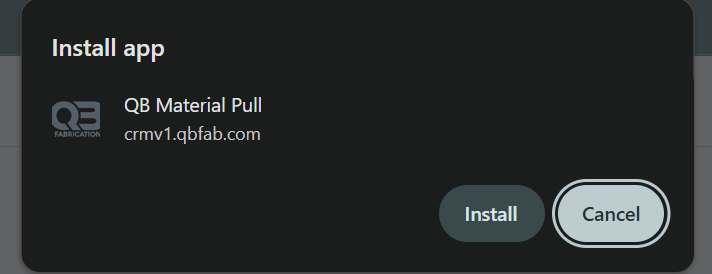
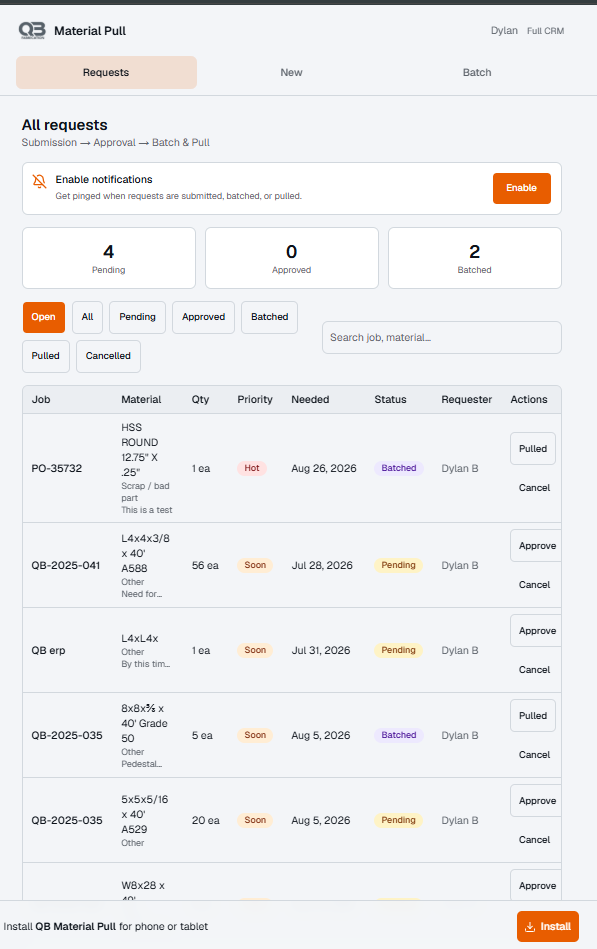
Install to your phone home screen
So Pull opens like an app, not a bookmark.
- →Android: tap the browser menu → Install app
- →iPhone: tap Share → Add to Home Screen
Know your capabilities
Ask your lead which of the four capabilities you have — it decides what you can do.
- →can_request, can_approve, can_approve_allocation, and/or can_batch
How to Submit a Request
For anyone with can_request — this is the everyday flow for asking for material.
How to Submit a Request checklist
0%Open Pull → New
Start a new request from the main screen.
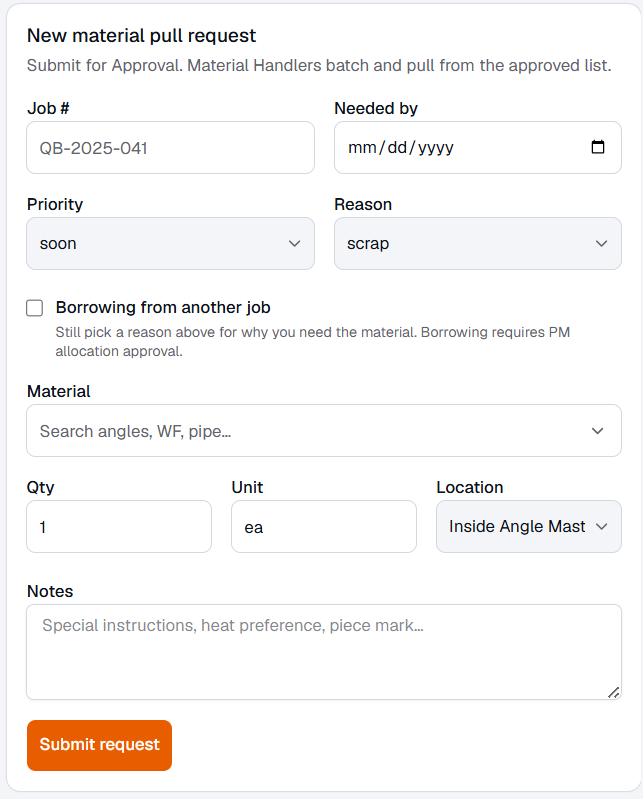
Fill in the details
Job #, material, qty, needed-by, priority, reason, location, notes.
- →Job # — which job the material is for
- →Material — what you need
- →Qty — how much
- →Needed-by — when it has to be there
- →Priority — normal or Hot
- →Reason — scrap / nest wrong / short staged / rush / other
- →Location — where it's needed
- →Notes — anything else the puller should know
Borrowing from another job?
Check “Borrowing from another job” and enter the Borrow from job #.
Submit
Double check the job number and quantity, then submit.
Quick fixes
- Cannot submit: You need can_request turned on. Ask your lead or an admin.
How to Approve
For can_approve and can_approve_allocation — keeping requests moving without a bottleneck.
How to Approve checklist
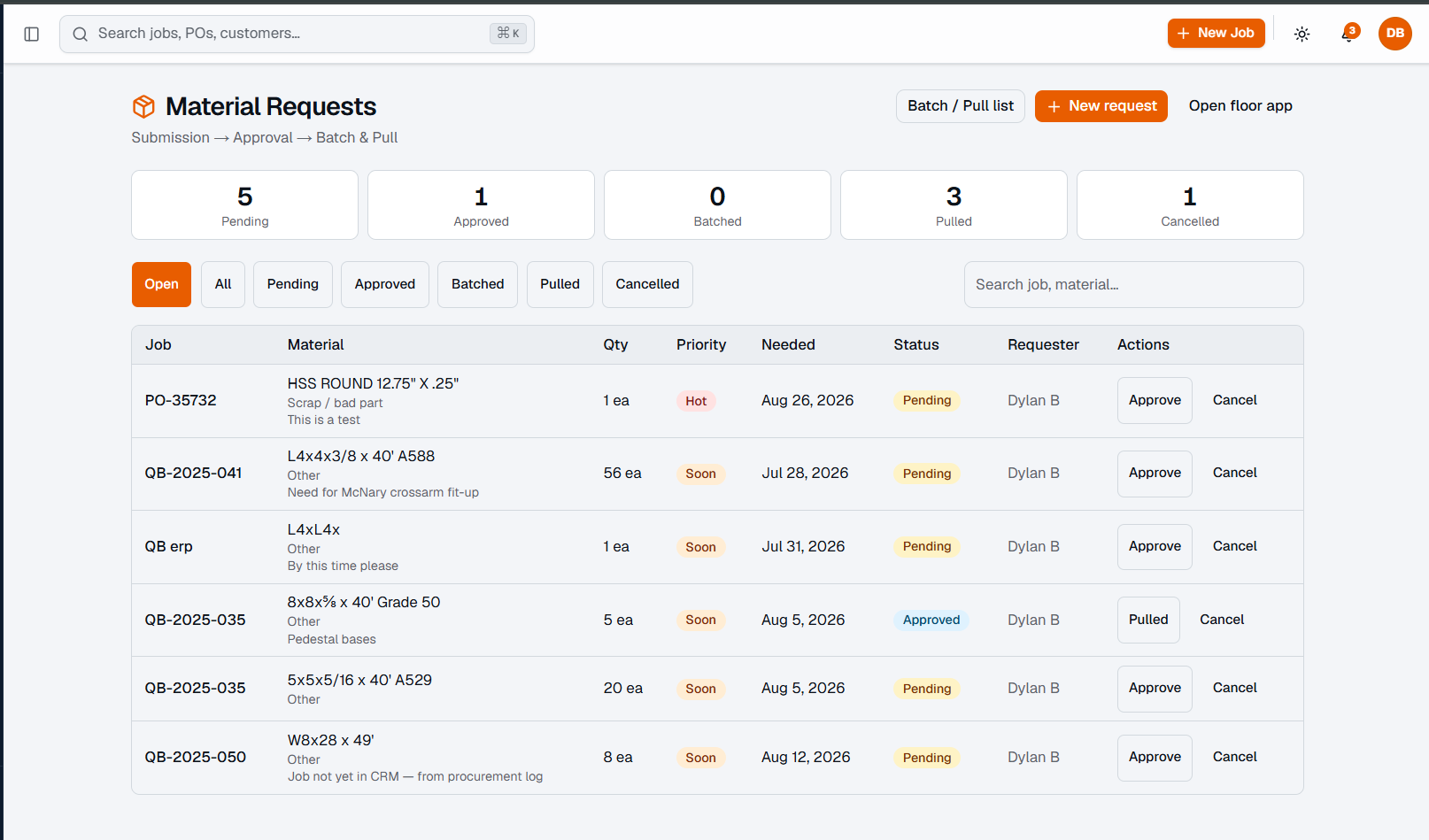
0%Open the request
From the board or the detail view.
Approve normal requests
If you have can_approve, approve non-borrow requests directly.
Approve borrow / “Needs PM” requests
These need someone with can_approve_allocation.
Quick fixes
- Borrow request is stuck: It needs someone with can_approve_allocation to sign off.
Batch → Print → Mark Pulled
For can_batch — turning approved requests into an actual pull on the floor.
Batch → Print → Mark Pulled checklist
0%Open the Batch tab
Only approved lines show up here.
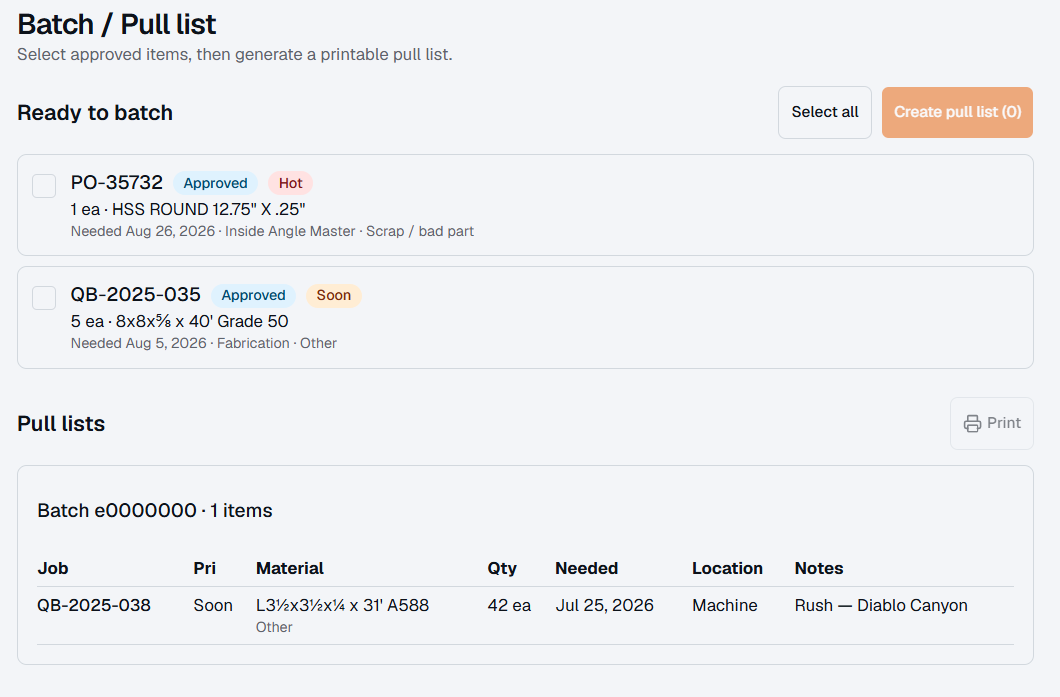
Select approved lines
Sort by hot / need-by so urgent items get pulled first.
Create pull list → Print
Build the batch, then print the physical list.
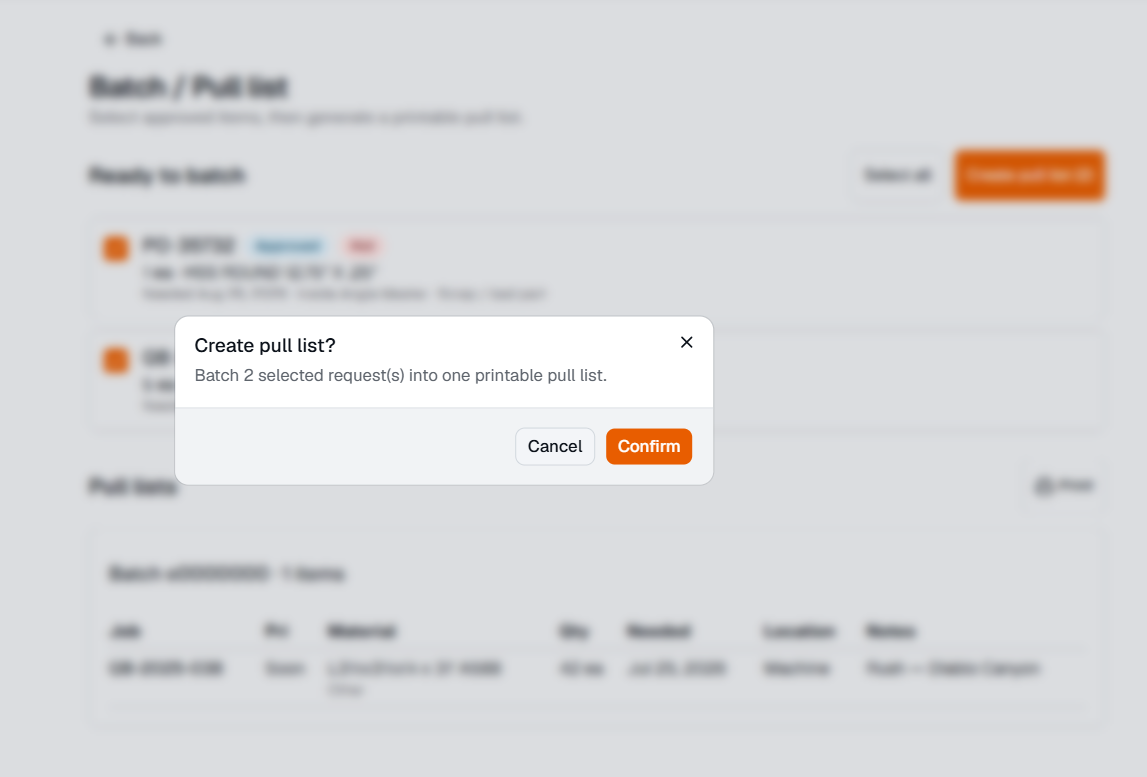
Pull the material
Use the printed list or the checklist and notes on screen.
Mark pulled
Once it's staged, mark each line as pulled so the request closes out.
Quick fixes
- No Batch tab showing: You need can_batch turned on.
Quick Fixes
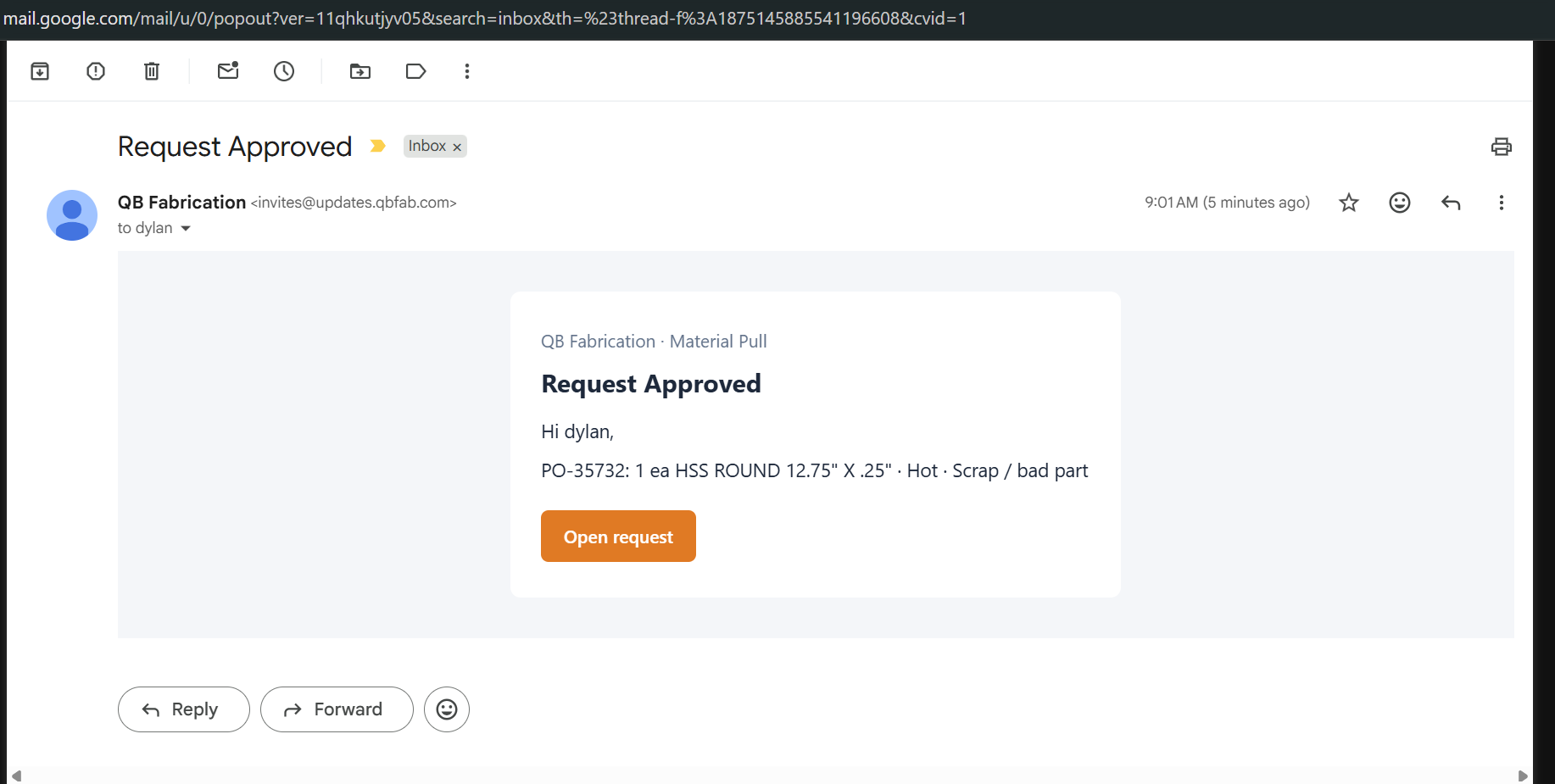
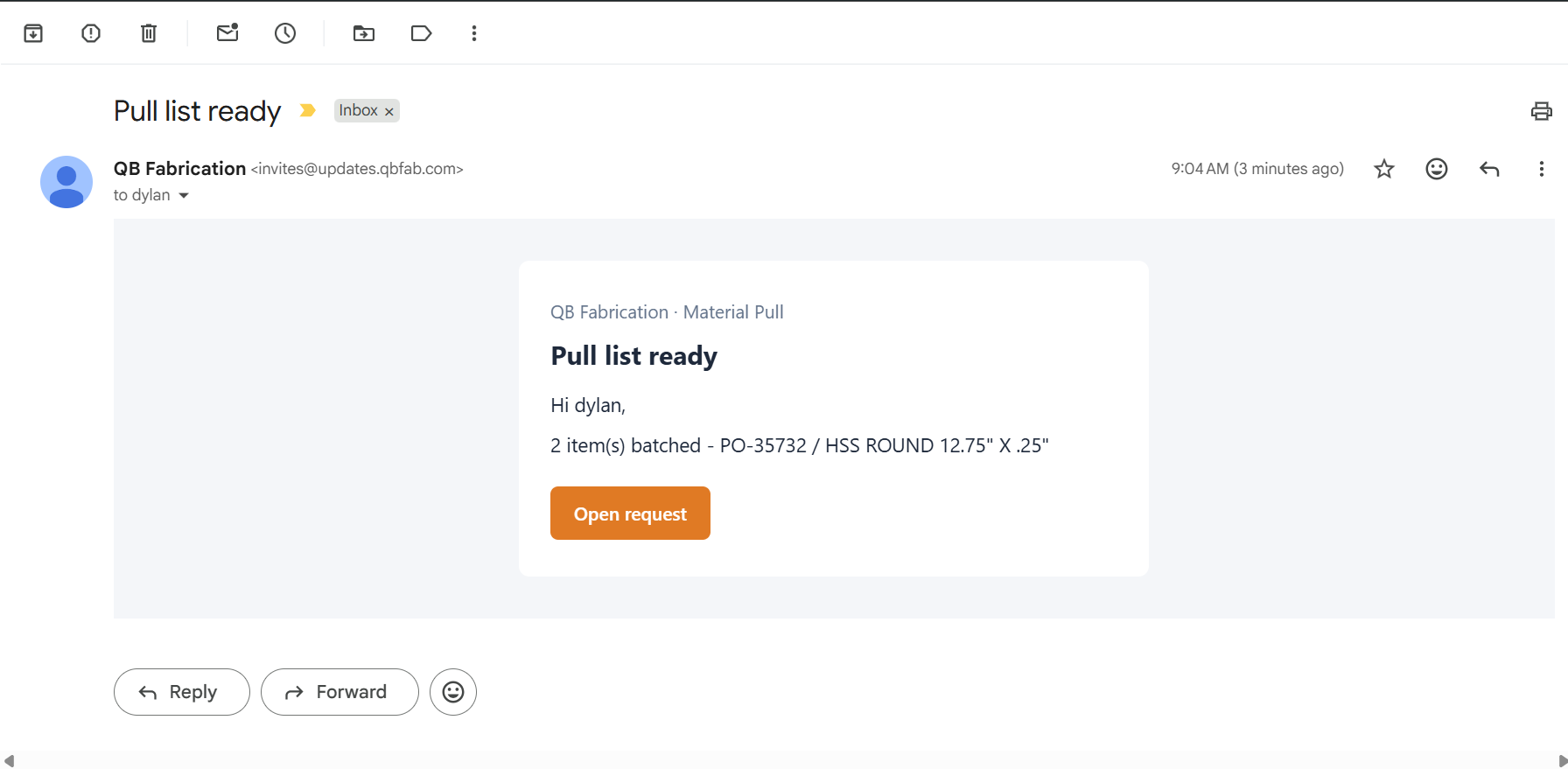
The most common snags and the fastest way through them. You'll also get an email when a request is approved or a pull list is ready.
Quick Fixes checklist
0%Quick fixes
- No Batch tab: You need can_batch turned on.
- Cannot submit: You need can_request turned on.
- Borrow stuck: Needs someone with can_approve_allocation.
- No notifications: Allow notifications in the browser/app. Email is the fallback.
Need help?
Not sure which capabilities you have, or a borrow request feels stuck? Ask your lead or an admin — most Pull questions come down to capabilities, not bugs.