Google Workspace
This is how the whole company communicates now. Get comfortable here first.
Sign in with your @qbfab.com address — that's your new login going forward.
Mail sent to the old @qbfabrication.com addresses is being forwarded into the same Gmail inbox, so you won't miss anything.
We're switching communication tools first. Your files can stay in Microsoft/OneDrive for now — nothing to move yet.
Reference doc: “QB Getting Started with Google Workspace” has extra detail if you want it.
First Login & Account Basics
Get signed in and get your account looking like yours. Takes about ten minutes.
Level 1 checklist
0%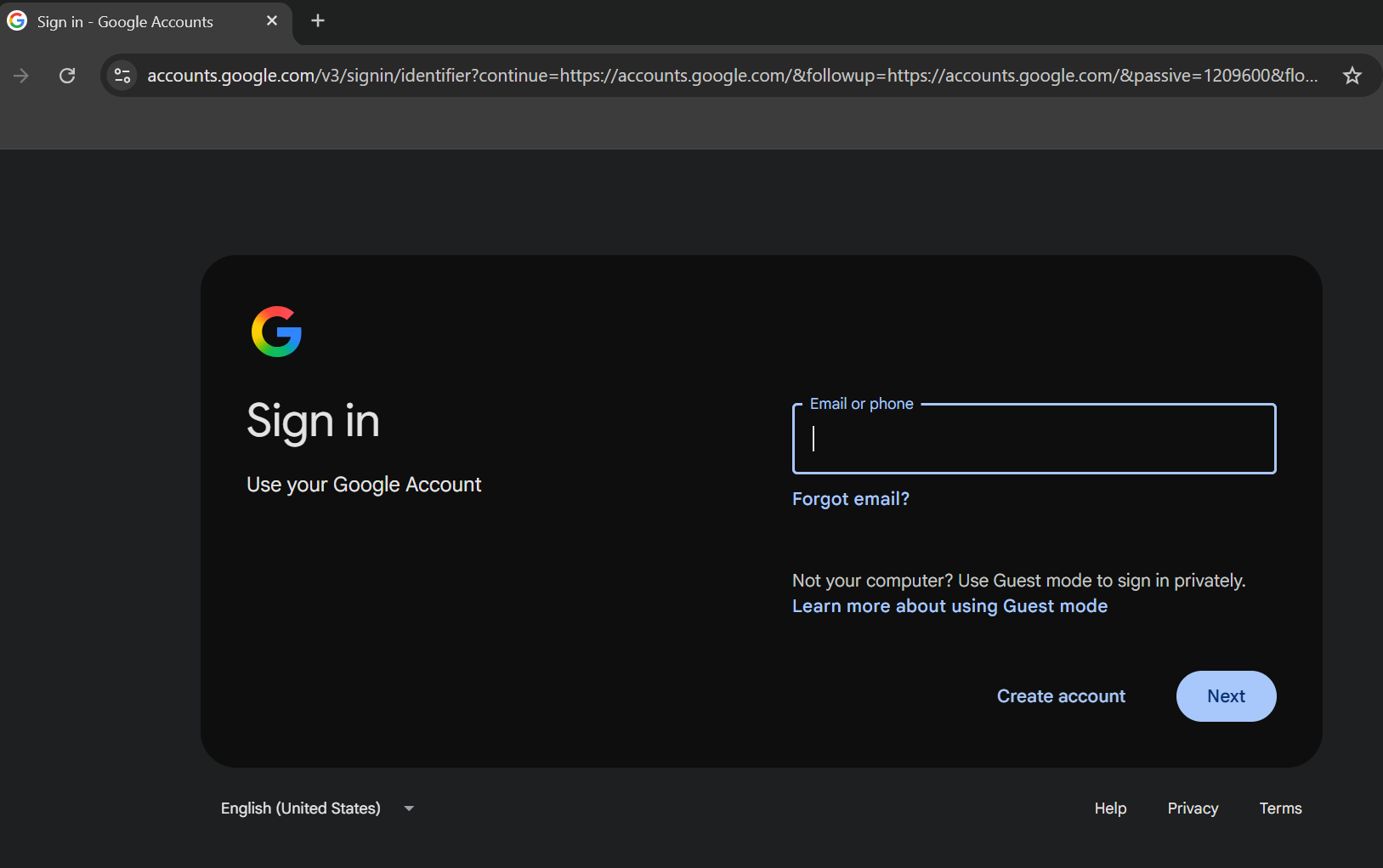
Sign in for the first time
- 1.Go to accounts.google.com
- 2.Enter your name.lastname@qbfab.com address
- 3.Enter the temporary password you were given
- 4.Create a new, private password when prompted
Turn on 2-Step Verification
- 1.While already signed in, open myaccount.google.com/signinoptions/twosv
- 2.Click Get started or Turn on 2-Step Verification
- 3.If it asks for a phone number, choose Authenticator app, Skip, Not now, or Try another way — do not enter your cell unless you want to
- 4.Preferred: set up Google Authenticator (next card). Phone number/SMS is optional, not required
Set up Google Authenticator (no cell number needed)
- 1.Install Google Authenticator from the App Store or Google Play
- 2.In 2-Step Verification, choose Authenticator app
- 3.Scan the QR code with the Authenticator app
- 4.Type the 6-digit code from the app and save
- 5.When it offers backup codes, print or write them down and keep them at work
Add a profile photo
- 1.Click your profile circle (top right) → Camera icon or Add photo
- 2.Upload a clear photo of yourself
- 3.Save
Use a real photo of yourself — it helps coworkers recognize you in Chat and Meet.
Authenticator is preferred if you do not want your personal number as backup login info. Phone number/SMS is optional. Keep backup codes at work in case the phone is lost.
Need help?
Stuck on something in Google Workspace? Ask in the #it-help Chat space, or reach out to the office — screen sharing over Meet makes most issues a two-minute fix.