Bitdefender
Antivirus on every QB computer. Install once from the email, then leave it running. SecurePass and VPN coming soon.

Install Bitdefender on a company phone
Scan with the company phone to download Bitdefender and add the device to QB’s account.
Scan from another screen or the printed quick reference. If you're already on the company phone, open this QR on a different device to scan it.

Security
Antivirus for this computer. Install it once from the email, then leave it alone.
What you get
Two things to know about Bitdefender Security. You do not need to run this like an app.
What you get checklist
0%Protection that stays on
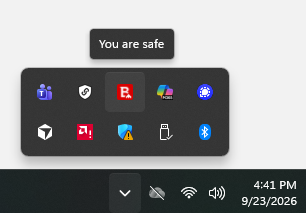
Once you install it, Bitdefender runs in the background 24/7. Real-time protection against threats while you keep working. When the icon by the clock says you are safe, you are covered.
IT handles it, not you
The settings are already set for QB. You never open it, and you never change anything. IT can see every QB computer from one place, so you are not the one who has to check antivirus.
Install it
Once this is done, you are covered on this computer. You will not need to open Bitdefender again.
Install it checklist
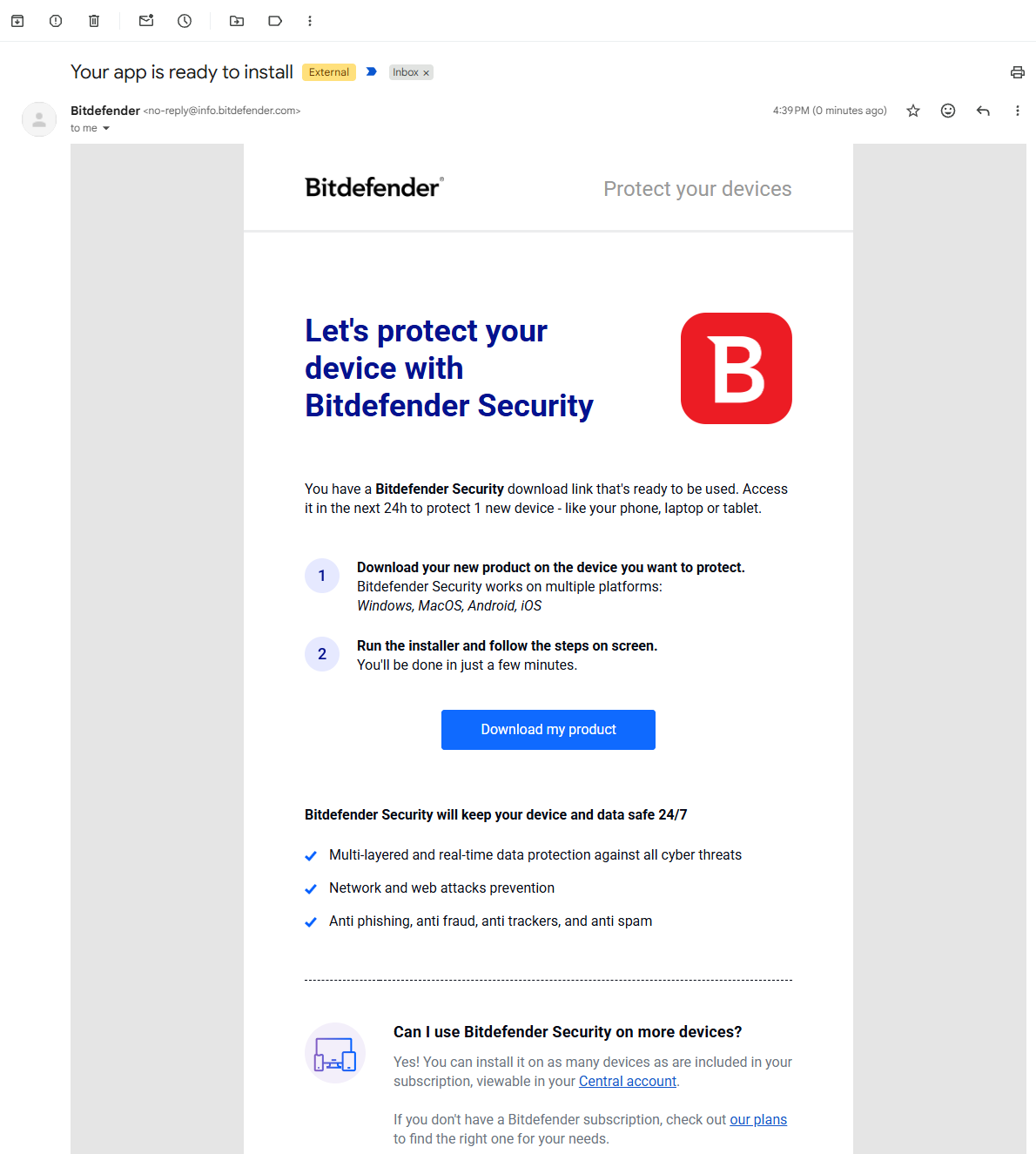
0%Open the Bitdefender email on that computer
Not your phone. If it is not in your Inbox, check Spam.
Click Download my product
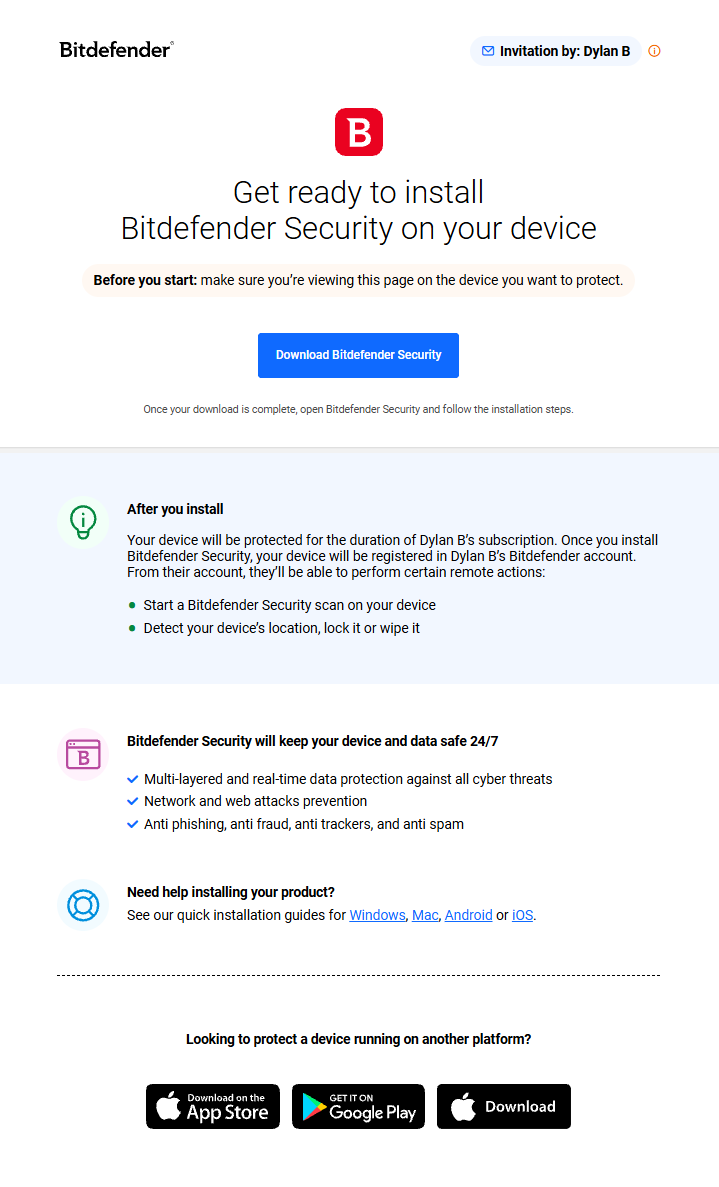
That opens the Bitdefender download page in your browser.
Click Download Bitdefender Security
Let the file finish downloading.
Open the file and follow the steps
Double-click it and click through the installer. It takes a couple of minutes.
Wait for You are safe
When the Bitdefender icon near the clock says you are safe, you are covered.
Close it
You are done. You will not open it again.
Quick fixes
- No email: Check Spam. Ask IT to resend. Do not download Bitdefender from Google.
- It asks for a password you do not have: Stop. Use Get IT Help. Do not guess a computer password.
- No icon after install: Wait 5 minutes, restart once, then Get IT Help.
Install Bitdefender on a company phone
Use the company QR code on the phone you want to add. Complete the setup flow so it is connected to QB’s Bitdefender account.
Install Bitdefender on a company phone checklist
0%Scan the code from another screen
Open this page on a computer or print the quick reference, then scan the code with the company phone camera. If you are already viewing this page on the company phone, show the code on another screen first.
Install Bitdefender and finish the prompts
Continue from the QR-code link and complete the setup. The device is added to QB’s Bitdefender account when enrollment finishes.
Ask IT if the code does not work
Do not search for another installer or use a personal Bitdefender account. Get IT Help so the device is enrolled correctly.
After it is installed
The icon near the clock means you are covered.
After it is installed checklist
0%Leave the icon alone
You do not open Bitdefender every morning.
Do not change settings
They are already set for QB.
If a window appears, close it
Close it and keep working.
If it will not close, or the icon is missing
Use Get IT Help. Do not uninstall.
Something did not work
The usual snags. Start here before you call.
Something did not work checklist
0%Quick fixes
- No email: Check Spam. Ask IT to resend. Do not download Bitdefender from Google.
- It asks for a password you do not have: Stop. Use Get IT Help.
- No icon after install: Wait 5 minutes, restart once, then Get IT Help.
- A window keeps popping up: Close it. If it will not close, Get IT Help. Do not uninstall.
SecurePass
Coming soonShared vendor and tool logins, filled in for you.
Shared logins without anyone texting a password around. Not live yet. There is nothing to install or set up right now. IT will let you know when it turns on and will get you set up.
VPN
Coming soonA secure connection when you work off-site.
Not live yet. There is nothing to install or set up right now. IT will let you know when it turns on.
Who this is for
Find your role for what you actually need to do.
Install on your assigned computer if you have one. On a shared floor PC, just confirm the Bitdefender icon is by the clock.
Install on your computer. SecurePass is coming soon — IT will set you up when it is live.
Install on your computer. SecurePass is coming soon — IT will set you up when it is live.
Install on your computer. SecurePass is coming soon — IT will set you up when it is live.
Install on your computer. When SecurePass and VPN go live, IT will roll them out to the team.
Install on your computer. That is all that is needed today.
Do the Security section on day one. SecurePass and VPN are not live yet.
Need help?
Install failed, no email, or you need a login you do not have? Use Get IT Help or ask your lead. Do not download Bitdefender off the internet.